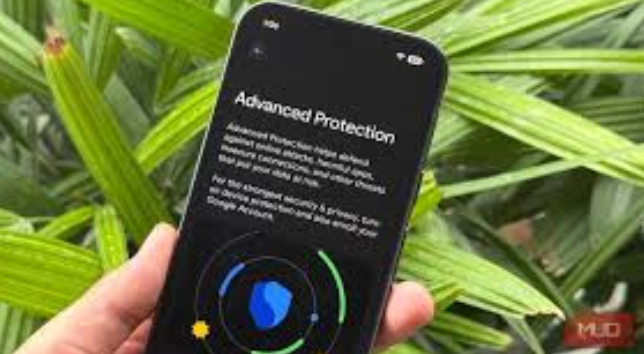
Your smartphone is no longer just a communication device. It holds your personal photos, private conversations, banking apps, work emails, passwords, and even your identity. Yet most Android users are unknowingly carrying around a device that is far less secure than it could be. The reason is simple: Android’s most powerful security feature is turned off by default.
This feature is called Advanced Protection.
Despite being one of the strongest defenses Android has ever introduced, the majority of users never enable it. Not because it’s hidden, but because many people don’t even know it exists. In this detailed guide, you’ll learn what Advanced Protection is, why it matters so much, what it protects you from, how to turn it on, and whether it’s right for you.
If you care about privacy, safety, and protecting your digital life, this is a setting you should turn on as soon as possible.
Why Android Security Needs to Be Taken Seriously
Cyber threats are no longer limited to computers. Smartphones are now a primary target for hackers, scammers, and malware developers. Android devices, due to their popularity and flexibility, are especially attractive targets.
Some of the most common mobile threats today include:
-
Malicious apps disguised as useful tools
-
Phishing links sent through SMS, WhatsApp, or email
-
Fake Wi-Fi networks that steal your data
-
Spyware that tracks calls, messages, and location
-
Account takeovers through stolen login credentials
-
SIM-swapping and identity theft
Even cautious users can fall victim because modern attacks are highly sophisticated. That’s why Android has evolved its security model beyond basic protections — and Advanced Protection is the result of that evolution.
What Is Advanced Protection Mode?
Advanced Protection is a high-security mode built directly into modern versions of Android. Instead of relying on individual settings scattered throughout the system, Advanced Protection bundles multiple strong security measures into one powerful switch.
When you enable it, Android automatically applies stricter rules across:
-
App installation
-
Network connections
-
Web browsing
-
Device theft protection
-
Google account security
-
Scam and phishing defenses
Think of it as putting your phone into a lockdown mode designed to block the most common and dangerous attack methods.
Why Advanced Protection Is Off by Default
If Advanced Protection is so powerful, why isn’t it enabled automatically?
The answer comes down to usability vs security.
Advanced Protection limits certain actions that many users are used to, such as:
-
Installing apps from outside the Play Store
-
Connecting to older or insecure mobile networks
-
Changing specific security settings manually
Because these restrictions can feel inconvenient to some users, Android leaves the choice up to you. Unfortunately, most people never discover the feature — leaving their devices more exposed than necessary.
What Makes Advanced Protection So Powerful?
Advanced Protection is not just one feature. It is a collection of multiple protections working together. Here’s what it actually does.
1. Blocks Dangerous App Installations
One of the biggest sources of Android malware is sideloaded apps — apps installed from APK files outside the Google Play Store.
Advanced Protection:
-
Completely blocks app installations from unknown sources
-
Prevents malicious APK files from running
-
Reduces the risk of spyware, banking trojans, and adware
This alone eliminates a huge percentage of Android infections.
2. Enforces Strong Network Security
Many users don’t realize how insecure some networks are.
Advanced Protection:
-
Blocks connections to outdated and insecure 2G networks
-
Prevents automatic connections to unsafe Wi-Fi networks
-
Reduces exposure to fake cell towers and Wi-Fi spoofing
These protections are especially important when traveling or using public networks.
3. Strengthens Web and Phishing Protection
Phishing attacks are one of the most common ways people lose access to accounts.
Advanced Protection:
-
Enhances safe browsing protections
-
Warns or blocks malicious websites
-
Reduces the risk of fake login pages stealing passwords
Even if you accidentally tap a suspicious link, Advanced Protection adds another safety net.
4. Improves Device Theft Protection
If your phone is lost or stolen, attackers often try to disable security features quickly.
Advanced Protection helps by:
-
Making it harder to remove accounts or disable protections
-
Enhancing theft-detection locking features
-
Protecting your data even if the device goes offline
This dramatically reduces the chances of data exposure after theft.
5. Enhances Google Account Security
Your Google account is the key to your digital life. If it’s compromised, everything connected to it is at risk.
Advanced Protection can:
-
Enforce stronger authentication
-
Reduce the risk of account takeovers
-
Protect email, photos, documents, and backups
This is especially valuable for users who rely heavily on Google services.
6. Better Spam and Scam Protection
Scam calls and messages are increasing worldwide.
Advanced Protection improves:
-
SMS scam detection
-
Call spam filtering
-
Protection against malicious message links
This reduces the chances of falling victim to financial fraud or identity theft.
Who Should Enable Advanced Protection?
The short answer: almost everyone.
Advanced Protection is especially useful if you:
-
Use banking or payment apps
-
Store personal or work documents on your phone
-
Travel frequently
-
Use public Wi-Fi networks
-
Want maximum privacy and security
-
Are tired of scam calls and phishing messages
It’s also highly recommended for journalists, activists, business owners, and anyone who could be targeted intentionally.
How to Turn On Advanced Protection (Step-by-Step)
The exact path may vary slightly depending on your phone manufacturer, but the process is generally simple.
On Most Android Devices
-
Open Settings
-
Go to Security and Privacy
-
Look for Advanced Protection
-
Tap Turn On or Enable
-
Follow the on-screen instructions
-
Restart your phone if prompted
Once enabled, Android will apply all protections automatically.
What Changes After You Enable It?
Advanced Protection immediately begins enforcing stricter rules. Here’s what you’ll notice.
What You Gain
-
Stronger defense against malware
-
Reduced risk of phishing and scams
-
Better protection on public networks
-
Improved account and data safety
-
Peace of mind
What You Might Lose
-
No sideloading apps without disabling protection
-
Limited access to insecure networks
-
Less control over individual security toggles
For most users, the benefits far outweigh the downsides.
Common Myths About Advanced Protection
“I Already Have Antivirus Apps”
Antivirus apps help, but they cannot control network behavior, system-level security, or account protections the way Advanced Protection can.
“I’m Not Important Enough to Be Targeted”
Most attacks are automated. Scammers and hackers don’t care who you are — they care whether your device is easy to exploit.
“It Will Make My Phone Slower”
Advanced Protection is optimized at the system level. It does not significantly affect performance or battery life.
Advanced Protection vs Standard Android Security
Here’s a simple comparison:
-
Screen lock: Basic protection
-
Play Protect: App scanning only
-
Encryption: Protects stored data
-
Advanced Protection: System-wide security enforcement
Advanced Protection doesn’t replace other features — it strengthens and enforces them.
Tips to Maximize Security Even Further
To get the most out of Advanced Protection, combine it with these habits:
-
Use a strong PIN or long password
-
Enable biometric unlock wisely
-
Keep your phone updated
-
Avoid clicking unknown links
-
Review app permissions regularly
-
Enable two-step verification
Security is strongest when technology and habits work together.
When You Might Not Want to Enable It
There are some valid reasons to delay or avoid Advanced Protection:
-
You frequently install apps outside the Play Store
-
You rely on older mobile networks in rural areas
-
You use custom ROMs or experimental software
In these cases, consider enabling as many individual security settings as possible instead.
Why You Should Turn It On Today
Every day you delay is another day your phone remains more vulnerable than it needs to be. Advanced Protection exists because modern threats demand modern defenses.
It doesn’t require technical knowledge.
It doesn’t require extra apps.
It doesn’t cost anything.
It’s already on your phone — waiting to be enabled.
Final Thoughts
Your Android phone is a digital extension of your life. Leaving its strongest security feature turned off is like leaving your front door unlocked — not because you forgot, but because no one told you the lock existed.
Advanced Protection is Android’s most powerful built-in defense, and enabling it takes just a few minutes. The protection it provides can save you from months of stress, financial loss, and privacy violations.