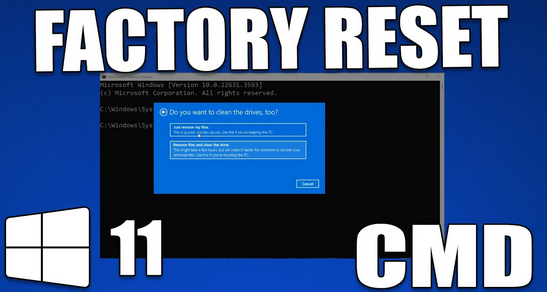
Factory resetting Windows 11 is one of the most effective ways to fix serious system problems, remove malware, improve performance, or prepare a PC for resale. While most users rely on the Settings app for resetting Windows, there are situations where Windows won’t boot properly or the graphical interface becomes unusable. In such cases, Command Prompt (CMD) becomes a powerful alternative.
This tutorial explains how to factory reset Windows 11 using Command Prompt, covering every possible method in detail. Whether your system is stuck in a boot loop, running extremely slow, or refusing to load Windows normally, this guide will help you reset Windows 11 safely and correctly.
What Is a Factory Reset in Windows 11?
A factory reset restores Windows 11 to its original state, similar to when it was first installed. During this process:
-
System settings return to default
-
Installed apps are removed
-
Corrupted system files are repaired
-
Malware and unwanted software are deleted
-
Performance issues are often resolved
Windows 11 offers two reset options:
-
Keep my files – Removes apps and settings but keeps personal files
-
Remove everything – Completely erases files, apps, and settings
Using Command Prompt allows you to trigger these reset options even when Windows won’t load properly.
When Should You Reset Windows 11 Using Command Prompt?
Factory resetting from Command Prompt is especially useful in the following situations:
-
Windows 11 fails to boot
-
Settings app does not open
-
PC is stuck on a black screen or blue screen
-
Malware prevents normal access
-
User account is corrupted
-
You cannot log in to Windows
-
Windows keeps crashing or freezing
If your PC still boots normally, the Settings app method is easier. But if not, CMD is your best option.
Important Things to Do Before Factory Reset
Before resetting Windows 11, keep these points in mind:
Backup Important Data
A factory reset can permanently delete your files, especially if you choose Remove everything. Always back up:
-
Documents
-
Photos
-
Videos
-
Browser bookmarks
-
Product keys
Plug in Power Source
If you’re using a laptop, connect it to a charger. Power loss during reset can damage Windows installation.
Know Your Account Password
After reset, Windows may ask you to sign in using your Microsoft account.
Method 1: Factory Reset Windows 11 Using Command Prompt (When Windows Boots)
If Windows 11 still starts and you can access Command Prompt, follow these steps.
Step 1: Open Command Prompt as Administrator
-
Press Windows + S
-
Type cmd
-
Right-click Command Prompt
-
Select Run as administrator
Step 2: Launch Windows Reset Tool
In the Command Prompt window, type:
Then press Enter.
Step 3: Choose Reset Option
A reset window will appear with two options:
-
Keep my files
-
Remove everything
Select the option based on your needs.
Step 4: Follow On-Screen Instructions
Windows will guide you through:
-
App removal confirmation
-
Cloud download or local reinstall
-
Final reset confirmation
Once confirmed, Windows 11 will begin resetting automatically.
Method 2: Factory Reset Windows 11 from Command Prompt (PC Won’t Boot)
If Windows 11 does not boot at all, you can access Command Prompt through Windows Recovery Environment (WinRE).
How to Access Windows Recovery Environment (WinRE)
You can access WinRE using any of the following methods:
Method A: Force Restart
-
Power on your PC
-
When Windows logo appears, press and hold the power button to shut down
-
Repeat this process 3 times
-
On the next boot, Windows will load Automatic Repair
Method B: Boot Menu Key
Some PCs allow WinRE access by pressing:
-
F8
-
F11
-
Esc
-
Shift + F8
(Keys depend on manufacturer)
Steps to Factory Reset Windows 11 Using CMD from WinRE
Step 1: Open Command Prompt
-
On Automatic Repair screen, select Advanced options
-
Click Troubleshoot
-
Select Advanced options
-
Click Command Prompt
Your PC may restart and ask for your account password.
Step 2: Start Reset Process via Command Prompt
In Command Prompt, type:
Press Enter.
This command directly launches the factory reset wizard.
Step 3: Choose Reset Type
You’ll be asked to select:
-
Keep my files
-
Remove everything
Choose the appropriate option.
Step 4: Confirm Reset
Confirm all prompts. Windows will start the reset process automatically.
Method 3: Factory Reset Windows 11 Using CMD and WinRE Menu
If the reset command fails, you can reset Windows manually through WinRE.
Step 1: Go to Troubleshoot
-
From WinRE, select Troubleshoot
-
Click Reset this PC
Step 2: Select Reset Option
Choose:
-
Keep my files
-
Remove everything
Step 3: Choose Reinstall Method
-
Cloud download (requires internet)
-
Local reinstall
Step 4: Start Reset
Windows will reset and restart multiple times.
Method 4: Factory Reset Windows 11 Using Bootable Media + Command Prompt
This method is useful when recovery partition is damaged.
What You Need
-
Another working PC
-
USB flash drive (8GB or larger)
-
Windows 11 installation media
Step 1: Boot from USB
-
Insert Windows 11 USB
-
Restart PC
-
Enter boot menu
-
Select USB drive
Step 2: Open Command Prompt
-
On Windows setup screen, press Shift + F10
-
Command Prompt will open
Step 3: Start Reset
Type:
or
Press Enter and follow reset instructions.
Understanding “Keep My Files” vs “Remove Everything”
Keep My Files
-
Personal files remain
-
Apps are removed
-
System settings reset
-
Safer for beginners
Remove Everything
-
Deletes all files
-
Removes all apps
-
Ideal for selling or giving away PC
-
Best for severe malware infections
Common Errors During CMD Factory Reset and Fixes
Error: “Systemreset Command Not Found”
Fix: Ensure Command Prompt is opened from WinRE or with admin privileges.
Error: “Could Not Find Recovery Environment”
Fix: Enable recovery environment using:
Then retry reset.
Reset Stuck at Percentage
Fix:
-
Wait at least 1 hour
-
Restart PC if frozen for long time
-
Use bootable USB reset method
How Long Does Factory Reset Take?
Reset duration depends on:
-
PC hardware
-
Storage type (SSD faster than HDD)
-
Reset option chosen
Approximate time:
-
Keep my files: 30–60 minutes
-
Remove everything: 1–2 hours
What Happens After Reset?
After reset completes:
-
Windows restarts
-
Setup screen appears
-
You’ll choose language, region, keyboard
-
Sign in with Microsoft or local account
-
Windows installs default drivers
-
Desktop loads with fresh Windows 11
Post-Reset Tips for Best Performance
After resetting Windows 11:
-
Install Windows updates
-
Update device drivers
-
Reinstall essential software only
-
Enable Windows Defender
-
Create a restore point
-
Avoid installing unnecessary apps
Is Factory Reset Safe?
Yes, factory reset is safe when done correctly. It is an official Windows feature designed to recover damaged systems. However, data loss is permanent if backups are not created.
When Factory Reset Is Not Enough
In rare cases, factory reset may not fix:
-
Hardware failures
-
Dead hard drives
-
Faulty RAM
-
BIOS issues
In such cases, professional repair may be required.
Final Thoughts
Factory resetting Windows 11 using Command Prompt is a powerful solution when normal reset options are unavailable. Whether your system boots or not, CMD provides multiple reliable ways to restore Windows to a clean state. By following the steps carefully, you can fix serious system issues, remove stubborn malware, or prepare your PC for a fresh start.
This method is especially useful for advanced users, technicians, and anyone facing critical Windows problems. Always remember to back up important data and choose the reset option that best fits your situation.