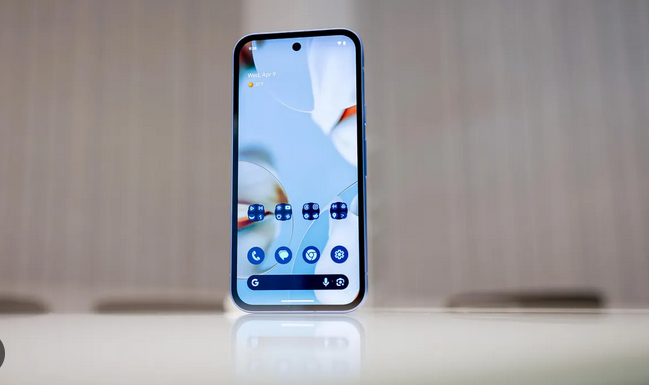
A slow Android phone can be one of the most frustrating tech experiences. What once felt fast, smooth, and responsive slowly turns into a laggy device that freezes, overheats, drains battery quickly, and struggles with even basic tasks like opening apps or browsing the web. The worst part? Many users assume the only solution is buying a new phone.
The truth is very different.
Over the years, I’ve tested dozens of Android devices—from budget phones to flagship models—and I’ve refined a proven 4-step method that consistently restores speed, stability, and smooth performance. This approach works regardless of brand, Android version, or phone age, as long as the hardware is still functional.
In this article, I’ll walk you through exactly what causes Android phones to slow down, followed by a step-by-step system that fixes the problem every time when done correctly.
Why Android Phones Become Slow Over Time
Before jumping into the solution, it’s important to understand why Android phones slow down in the first place. Contrary to popular belief, it’s rarely because the phone is “too old.”
Common Reasons for Slow Android Performance
-
Too many apps running in the background
-
Storage nearly full
-
System cache buildup
-
Outdated apps or buggy updates
-
Heavy animations and visual effects
-
Poorly optimized third-party apps
-
Excessive notifications and sync processes
Android is a powerful and flexible operating system, but that flexibility allows apps to run background processes that slowly eat away at performance.
The good news is that all of these problems are fixable without root access or factory resets—if you follow the correct order.
The 4-Step Method That Fixes Slow Android Phones
This method is not about random “speed boost” tricks. Each step builds on the previous one, addressing the root causes of lag instead of masking symptoms.
Here’s the framework:
-
Clean What’s Slowing Your Phone Down
-
Control Background Activity
-
Optimize System Settings for Performance
-
Reset Software Bottlenecks Without Losing Data
Let’s break down each step in detail.
Step 1: Clean What’s Slowing Your Phone Down
This is the foundation of the entire method. If your phone is cluttered, no optimization will work properly.
Clear Unnecessary Apps (The Right Way)
Most people install apps and forget about them. Over time, unused apps:
-
Consume storage
-
Run background services
-
Update silently
-
Generate cache files
What to Do:
-
Open Settings > Apps
-
Sort apps by Last Used
-
Uninstall anything you haven’t used in the last 60–90 days
If you’re unsure about an app, disable it first instead of uninstalling.
Clear App Cache (Not App Data)
Cached data helps apps load faster—but when cache grows too large, it does the opposite.
How to Clear Cache Safely:
-
Go to Settings > Storage
-
Open Apps
-
Select heavy apps (browser, social media, video apps)
-
Tap Clear Cache (not Clear Data)
This alone can free several gigabytes and instantly improve responsiveness.
Free Up Storage Space
Android phones perform best when at least 20–25% storage is free. When storage is nearly full, the system struggles to manage temporary files.
Storage Cleanup Checklist:
-
Delete old screenshots and videos
-
Move photos to cloud storage or SD card
-
Remove downloaded files you no longer need
-
Clear offline content from streaming apps
Pro tip: If your phone has less than 5GB free, expect lag no matter how powerful it is.
Step 2: Control Background Activity
This is where most “slow phone” problems actually come from. Android apps love running in the background.
Identify Apps That Drain Performance
Some apps constantly:
-
Sync data
-
Track location
-
Send notifications
-
Refresh content
Social media, shopping apps, and news apps are common culprits.
Restrict Background Usage
Steps:
-
Go to Settings > Apps
-
Select an app
-
Tap Battery
-
Choose Restricted or Limit Background Usage
This prevents the app from draining resources when you’re not using it.
Disable Auto-Start for Non-Essential Apps
Many phones allow apps to start automatically at boot.
What to Disable:
-
Games
-
Shopping apps
-
Social media
-
Utility apps you rarely use
Your phone will boot faster and feel smoother instantly.
Reduce Sync Frequency
Constant syncing slows down phones and drains battery.
Adjust These Settings:
-
Email sync interval
-
Cloud backup frequency
-
App refresh permissions
Set sync to manual for apps that don’t need real-time updates.
Step 3: Optimize System Settings for Performance
This step separates casual users from power users. Android includes visual effects that look nice but consume resources.
Reduce Animations (Huge Speed Boost)
Animations make Android feel polished—but they also slow down weaker devices.
How to Reduce Animations:
-
Enable Developer Options
-
Set:
-
Window Animation Scale → 0.5x or Off
-
Transition Animation Scale → 0.5x or Off
-
Animator Duration Scale → 0.5x or Off
-
This makes your phone feel instantly faster.
Turn Off Unnecessary Visual Effects
Disable features like:
-
Live wallpapers
-
Dynamic themes
-
Edge lighting effects
-
Blur effects (if available)
Use a simple static wallpaper for best performance.
Use Lite or Optimized Apps
Many popular apps have lighter versions that use fewer resources.
Examples:
-
Facebook Lite
-
Messenger Lite
-
YouTube Lite (via web apps)
-
Google Go apps
Switching to lighter apps can dramatically improve speed on older phones.
Keep System Updated (But Smartly)
Updates can improve performance—but not always immediately.
Best Practice:
-
Install stable updates
-
Avoid beta versions
-
Restart phone after every major update
A simple reboot clears temporary system memory and resolves background bugs.
Step 4: Reset Software Bottlenecks Without Losing Data
This is the final step—and the most powerful when done correctly.
Restart Your Phone Properly
Most users never restart their phone properly.
Correct Method:
-
Power off completely
-
Wait 30 seconds
-
Turn back on
This clears system memory and background glitches.
Reset App Preferences (Safe & Effective)
This resets:
-
Disabled apps
-
App permissions
-
Default app settings
It does not delete data.
How:
-
Go to Settings > System
-
Tap Reset Options
-
Select Reset App Preferences
This fixes broken permissions that often cause lag.
Clear System Cache (If Supported)
Some Android devices allow clearing system cache via recovery mode.
This removes leftover files from updates and old system processes.
Factory Reset (Last Resort Only)
If your phone is still slow after all four steps, a factory reset may help—but only if hardware is still healthy.
Before Reset:
-
Backup everything
-
Remove Google account
-
Note important passwords
A clean install gives Android a fresh start—but most users won’t need this if previous steps are done correctly.
How Long Does This Method Take?
-
Step 1: 20–30 minutes
-
Step 2: 10–15 minutes
-
Step 3: 5–10 minutes
-
Step 4: 5–10 minutes
Total time: Under one hour
Result: Noticeably faster phone
Real Results You Can Expect
After following this 4-step method, most users report:
-
Faster app launches
-
Smoother scrolling
-
Better battery life
-
Reduced overheating
-
Fewer crashes
-
Faster boot times
Even phones that are 3–4 years old often feel usable again.
Common Mistakes That Make Phones Slower
Avoid these mistakes at all costs:
-
Installing “RAM booster” apps
-
Using aggressive task killers
-
Clearing app data unnecessarily
-
Running multiple antivirus apps
-
Ignoring storage warnings
These often make performance worse, not better.
Why This Method Works Every Time
This approach works because it:
-
Targets root causes
-
Follows correct order
-
Avoids harmful shortcuts
-
Works with Android’s system design
Instead of forcing performance, it removes what’s blocking it.
Final Thoughts
You don’t need a new phone every two years. In most cases, your Android phone isn’t slow—it’s just overloaded, misconfigured, and poorly optimized.
By following this proven 4-step method, you can reclaim speed, stability, and performance without spending a single dollar. The key is consistency and doing each step properly.