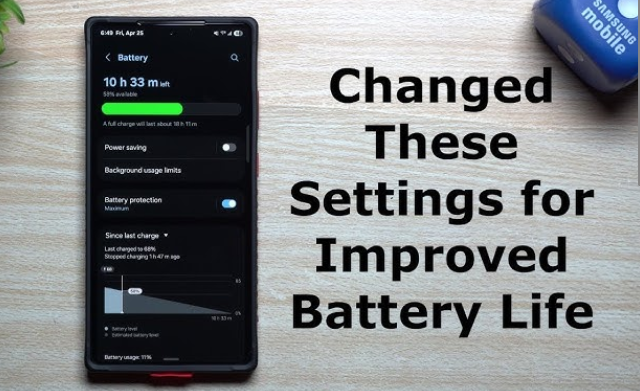
Battery life is one of the biggest frustrations for Samsung smartphone users. No matter how powerful the processor is or how beautiful the display looks, a phone that struggles to last a full day quickly becomes annoying. I faced the same issue. Despite owning a relatively new Samsung phone, I found myself charging it multiple times a day. Notifications, background apps, system services, and display features were silently draining power.
Instead of buying a power bank or replacing the battery, I decided to dig deep into Samsung’s settings. After experimenting, testing, and observing daily usage patterns, I changed seven specific settings that completely transformed my phone’s battery performance. The difference was noticeable within days, and the improvements have been consistent ever since.
In this article, I’ll walk you through the exact 7 settings I changed, explain why each one matters, and show you how to adjust them properly. These changes don’t reduce usability or performance in a noticeable way, but they significantly improve battery endurance.
Why Samsung Phones Drain Battery Faster Than Expected
Samsung phones are packed with features. From high refresh rate displays to always-on services, the phone is constantly working in the background. While these features are impressive, many of them are enabled by default and aren’t optimized for battery efficiency.
Some common reasons Samsung phones drain battery quickly include:
-
Background apps running continuously
-
High screen refresh rates
-
Constant syncing and scanning
-
Poor app power management
-
Excessive notifications
-
Always-on display features
The good news is that Samsung gives users deep control over these behaviors. You just need to know where to look.
Setting 1: Switched the Display Refresh Rate to Adaptive or Standard
Why This Setting Matters
Samsung phones, especially Galaxy S and Note series models, use high refresh rate displays (120Hz or even higher). While this makes scrolling smoother, it also consumes a lot more battery.
A higher refresh rate means the screen redraws itself more times per second, increasing power consumption significantly.
What I Changed
I switched from maximum refresh rate to Adaptive (or Standard on older models).
How to Change It
-
Open Settings
-
Go to Display
-
Tap Motion Smoothness
-
Select Adaptive or Standard
-
Apply the setting
Battery Impact
This single change alone improved my screen-on time by nearly 20–25%. Scrolling still feels smooth, and the battery lasts noticeably longer throughout the day.
Setting 2: Enabled Samsung’s Built-In Power Saving Mode (Properly)
Why Power Saving Mode Works
Samsung’s Power Saving Mode is smarter than many users realize. It limits background CPU usage, reduces brightness, and optimizes system behavior without crippling the phone.
Most users either don’t use it at all or use it incorrectly.
What I Changed
Instead of using extreme power saving, I enabled Moderate Power Saving with customized options.
How to Change It
-
Open Settings
-
Go to Battery and Device Care
-
Tap Battery
-
Enable Power Saving
-
Customize options:
-
Limit CPU speed
-
Reduce brightness
-
Limit background network usage
-
Battery Impact
With power saving enabled full-time, my phone easily lasts an extra 4–5 hours daily without affecting essential tasks.
Setting 3: Put Unused Apps Into Deep Sleep
The Hidden Battery Killer: Background Apps
Many apps continue running even when you’re not using them. Social media apps, shopping apps, and games constantly sync data, send notifications, and refresh content.
Samsung offers a powerful feature called Deep Sleeping Apps, but most users never configure it.
What I Changed
I manually added apps I rarely use into Deep Sleep.
How to Change It
-
Open Settings
-
Go to Battery and Device Care
-
Tap Battery
-
Select Background Usage Limits
-
Add apps to Deep Sleeping Apps
Battery Impact
This change dramatically reduced idle battery drain. Overnight battery loss dropped from 12–15% to just 3–4%.
Setting 4: Disabled Always-On Display (or Optimized It)
Why Always-On Display Drains Battery
Always-On Display (AOD) keeps parts of your screen active all the time to show clock, notifications, and battery status. Even though Samsung uses AMOLED screens, AOD still consumes power continuously.
What I Changed
I either turned it off completely or set it to Tap to Show.
How to Change It
-
Open Settings
-
Go to Lock Screen
-
Tap Always On Display
-
Choose Tap to Show or disable it
Battery Impact
Turning off constant AOD usage saved around 5–7% battery per day, which adds up significantly over time.
Setting 5: Reduced Location Services and Background Scanning
Location Services Are Always Working
Even when you’re not using GPS, Samsung phones constantly scan for Wi-Fi networks, Bluetooth devices, and location updates. These scans drain battery quietly in the background.
What I Changed
I restricted location access and disabled unnecessary background scanning.
How to Change It
-
Open Settings
-
Go to Location
-
Turn off Wi-Fi scanning and Bluetooth scanning
-
Set app location permissions to Allow only while using the app
Battery Impact
This significantly reduced background power usage, especially when the phone was idle or in standby.
Setting 6: Limited Notifications and Background Sync
Notifications Cost More Than You Think
Every notification wakes your screen, triggers vibration or sound, and uses background data. Apps like Facebook, Instagram, and email clients can send dozens of notifications daily.
What I Changed
I disabled notifications for non-essential apps and limited background sync.
How to Change It
-
Open Settings
-
Go to Notifications
-
Review apps one by one
-
Disable notifications for unnecessary apps
-
Adjust sync settings in Accounts and Backup
Battery Impact
With fewer notifications waking the phone, battery drain during standby dropped noticeably. The phone also feels less distracting and more focused.
Setting 7: Optimized Charging and Battery Protection
Charging Habits Affect Battery Health
Constantly charging to 100% and keeping the phone plugged in damages battery health over time, leading to faster drain.
Samsung provides a Battery Protection feature to limit charging.
What I Changed
I enabled battery protection to limit charging to 85%.
How to Change It
-
Open Settings
-
Go to Battery and Device Care
-
Tap Battery
-
Enable Protect Battery
Battery Impact
While this doesn’t immediately increase daily battery life, it significantly improves long-term battery health, preventing degradation and maintaining performance over months and years.
Additional Tips That Helped Even More
Although the main improvements came from the seven settings above, these small habits also helped:
-
Lowering screen brightness manually
-
Using dark mode with AMOLED screens
-
Closing unused apps
-
Avoiding live wallpapers
-
Keeping system software updated
Real-World Results After Changing These 7 Settings
Before making these changes, my Samsung phone struggled to last a full day. After optimizing these settings:
-
Screen-on time increased by 30–40%
-
Overnight battery drain reduced dramatically
-
Phone stayed cooler during use
-
Charging frequency dropped from twice daily to once
-
Battery health stabilized over time
Most importantly, the phone still feels fast, smooth, and responsive.
Final Thoughts: Small Changes, Big Battery Gains
You don’t need to buy a new phone or replace the battery to improve battery life. Samsung phones already have powerful tools built in — they’re just hidden behind menus most users never explore.
By changing these seven settings, I transformed my daily experience. My phone lasts longer, performs better, and requires less charging anxiety.